Split PDF Online – Free, Fast & Private, No Uploads
Split PDF Tool
Drag & Drop PDF file here
Rendering page thumbnails…
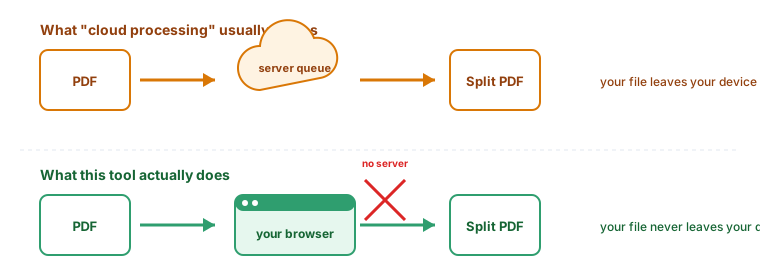
🔒 Your file is processed entirely in this browser tab. It is never uploaded anywhere.
Split PDF Tool: How to Divide a PDF Without Uploading It Anywhere
We've all been there: a 50-page document, but you only need to send two pages to a client. Or a massive eBook where you just want one chapter saved for offline reading.
Sending a giant file when only a fraction is relevant wastes everyone's time and data. This tool splits your PDF into exactly the pieces you need — entirely inside your browser, without ever uploading your document to a server.
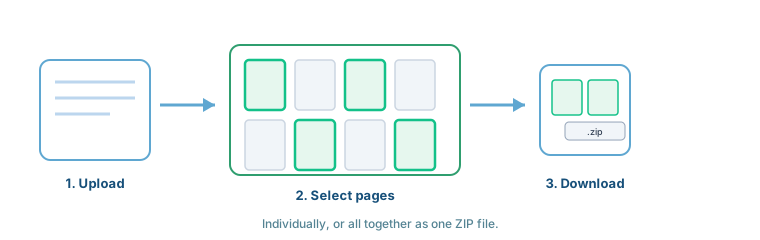
What Is a Split PDF Tool?
A Split PDF tool breaks a single PDF document into smaller parts — digital scissors for your files. Instead of being stuck with one monolithic document, you can pull out exactly the pages that matter, organize a long document into sections, or remove pages you don't want to share.
How This Tool Actually Works
Everything runs on the JavaScript libraries pdf.js and pdf-lib, loaded once when the page opens. When you select a file, it's read directly into your browser's memory — never sent to a server, never uploaded, never stored anywhere else. The splitting itself happens locally, and the resulting files are generated and offered to you as a direct download.
Three Ways to Select Pages
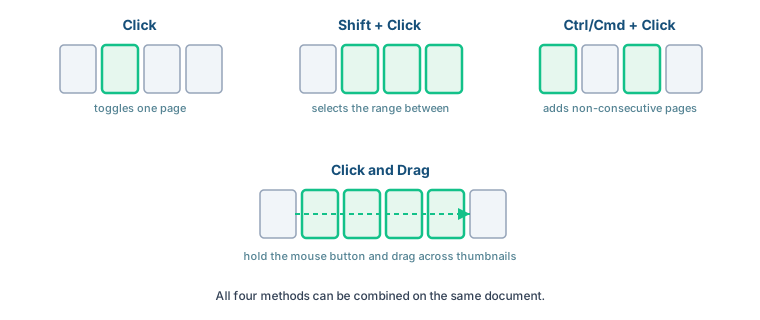
Click any thumbnail to toggle it. Hold Shift and click a second thumbnail to select everything between them. Hold Ctrl (or Cmd on Mac) and click to add non-consecutive pages one at a time. Or click and drag across several thumbnails at once to select a run of pages in one motion.
Three Ways to Split Your PDF
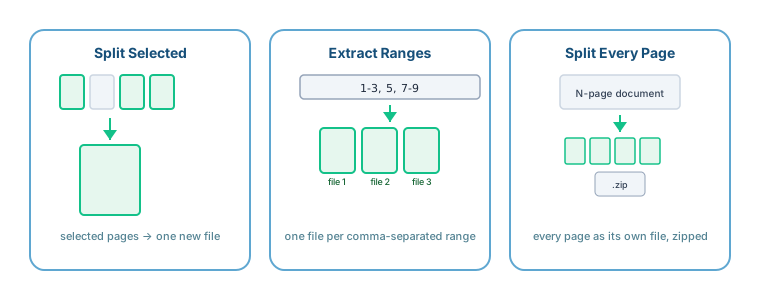
- Split Selected (Single PDF): Combines whichever pages you've clicked into one new file — perfect for pulling a handful of relevant pages out of a longer document.
- Extract Ranges → Multiple Files: Type a range like
1-3, 5, 7-9and get a separate file for each comma-separated group. - Split Every Page (ZIP): One click turns every page of the document into its own single-page PDF, all bundled into one ZIP download.
Worked Example: Extracting Ranges
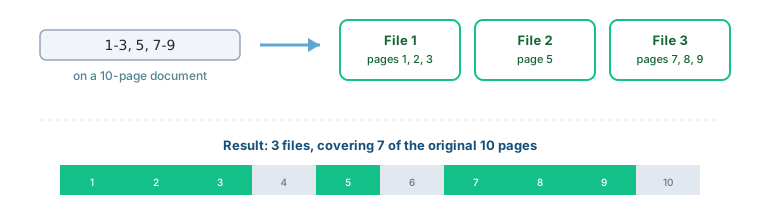
Typing 1-3, 5, 7-9 on a 10-page document produces three separate files — pages 1 through 3, page 5 alone, and pages 7 through 9 — covering 7 of the original 10 pages. Pages 4, 6, and 10 are simply left out, with no need to delete them manually first.
Key Features
Real-Life Use Cases
Students: Extracting specific assignment pages from a textbook PDF to upload to a portal.
Office Workers: Splitting a report so each department only receives their relevant section.
Freelancers: Sending just the portfolio section of a larger proposal to a lead.
Teachers: Splitting a long resource into individual worksheets, one file per page.
Split PDF vs. Merge PDF
These are two sides of the same coin. Split PDF (this tool) breaks a large file into smaller ones. Merge PDF combines several smaller files into one. You can even use them together: split out just the pages you need, then merge them with other documents into a new combined file.
Common Mistakes to Avoid
- Uploading the wrong file: Double-check the filename before you start selecting pages.
- Missing the last page of a range: Ranges are inclusive on both ends — "5-10" includes page 10.
- Closing the tab before downloading: Since nothing is stored on a server, closing the tab means starting over — download your result before navigating away.
Is This Safe to Use?
- No uploads: Your file is read and processed directly in your browser's memory.
- No accounts, no server copy: There's nothing to "delete later," because nothing was ever stored anywhere but your own device.