Compress PDF – Reduce File Size in Your Browser
Compress PDF Tool
or
🔒 Your file is processed entirely in this browser tab. It is never uploaded anywhere.
Compress PDF: How It Actually Works and When to Use It
In today's digital-first world, the PDF (Portable Document Format) is the universal language of documentation. Whether it's a university thesis, a scanned contract, or a photography portfolio, we rely on PDFs because they look the same on every device. However, there's a common hurdle: file size. High-resolution scans and images can turn a document into a file that's difficult to email or upload.
This tool reduces that file size by re-rendering each page at a quality level you choose, entirely inside your browser. It's genuinely effective for the right kind of file — and this guide is upfront about exactly which files that is.
What This Tool Actually Does
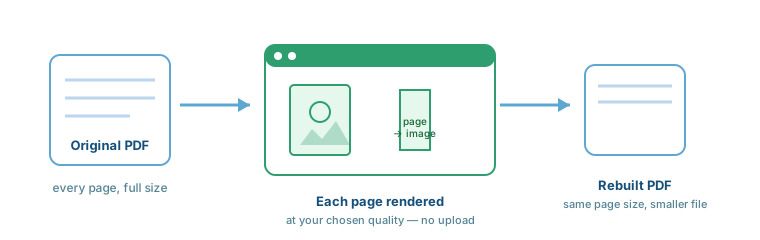
Rather than editing the PDF's internal data streams, this tool takes a more direct approach: it renders each page as an image at your chosen resolution, then rebuilds a brand-new PDF from those images at the same page dimensions as the original. For scanned documents and image-heavy files, this can shrink file size dramatically with no meaningful visual loss.
The trade-off: because every page becomes a flattened image, any text on that page — including an existing searchable text layer — is no longer selectable, searchable, or copyable afterward. This is the single most important thing to know before compressing a text document with this tool.
Is This Tool Right for Your File?
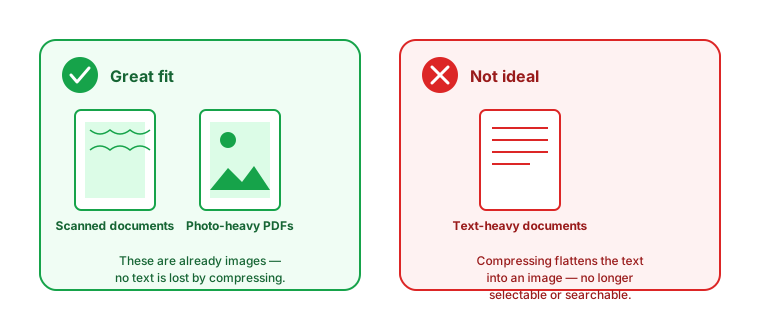
When you upload a file, this tool checks the first page and tells you which situation you're in, so you're never guessing.
Why Reducing PDF File Size Is Important
1. Faster File Sharing
Large files are the enemy of speed. Smaller PDFs mean your recipient isn't waiting minutes for a download, which matters most on slower connections.
2. Meeting Email Attachment Limits
Most major email providers cap attachments around 20-25MB. A well-compressed scanned document can go from 30MB down to a few MB in seconds.
3. Saving Storage Space
Whether on a local drive or cloud storage, smaller files mean more room before you need to upgrade a paid storage plan.
4. Better Website Performance
If your site offers downloadable scanned forms or brochures, a smaller file means faster page loads and a better experience for visitors.
How to Use the Compress PDF Tool: Step-by-Step
- Upload Your File: Drag and drop your PDF, or click "Choose File."
- Read the Advisory: The tool checks your first page and tells you if this is a good fit.
- Choose Compression Level: High, Medium, or Low, balancing size against quality.
- Click "Compress PDF": Your browser processes the file instantly — nothing is uploaded.
- Download: Save your new, smaller PDF, and check the before/after size comparison.
Compression Levels Explained
High Compression
Best for: Scanned documents where small file size matters most.
Result: Smallest file size.
Trade-off: Lower image resolution, which can look soft if zoomed in closely.
Medium Compression
Best for: Most scanned forms, receipts, and photo-heavy pages.
Result: A strong size reduction with good visual quality.
Low Compression
Best for: Photography portfolios or anything where visual fidelity matters most.
Result: Smaller size gains, highest visual quality of the three.
Note: all three levels still flatten every page into an image. None of them preserve selectable text — that limitation applies at every quality setting, not just the higher-compression ones.
Example Result
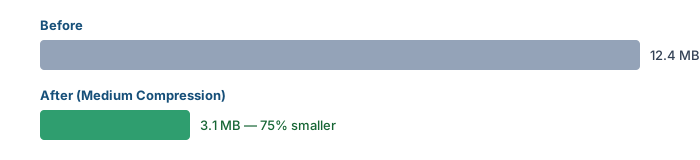
Results vary a lot by file: a 12.4MB scanned document at Medium compression might land around 3.1MB (roughly 75% smaller), while an already-small, mostly-text PDF may not shrink at all — the tool will tell you if that happens.
Benefits of Using This Compressor
- No Installation Required: Everything happens in your web browser.
- Universal Compatibility: Works on Windows, Mac, Linux, Android, or iOS.
- No Uploads, Ever: Your file never leaves your device — there's no server transaction to secure, because there isn't one.
Who Should Use This Tool?
- Students and Office Workers: Uploading scanned assignments, forms, or receipts to a portal with a size limit.
- Freelancers and Photographers: Sharing image-heavy portfolios or proofs that need to stay under an email limit.
- Anyone with a scanned contract or ID: Where the file is already just a picture of a page, so there's no text to lose.
General Tips for Smaller PDFs
These are good habits for creating lean PDFs in general, separate from what this specific tool does:
- Scan at a reasonable resolution: 200-300 DPI is usually plenty for a readable scan; higher just adds size.
- Remove unused pages first: A "Split PDF" tool can trim pages you don't need before you compress what's left.
- Keep the original: Since this method isn't reversible in terms of text-selectability, hang onto your original file.